What is a Spacebar Counter?
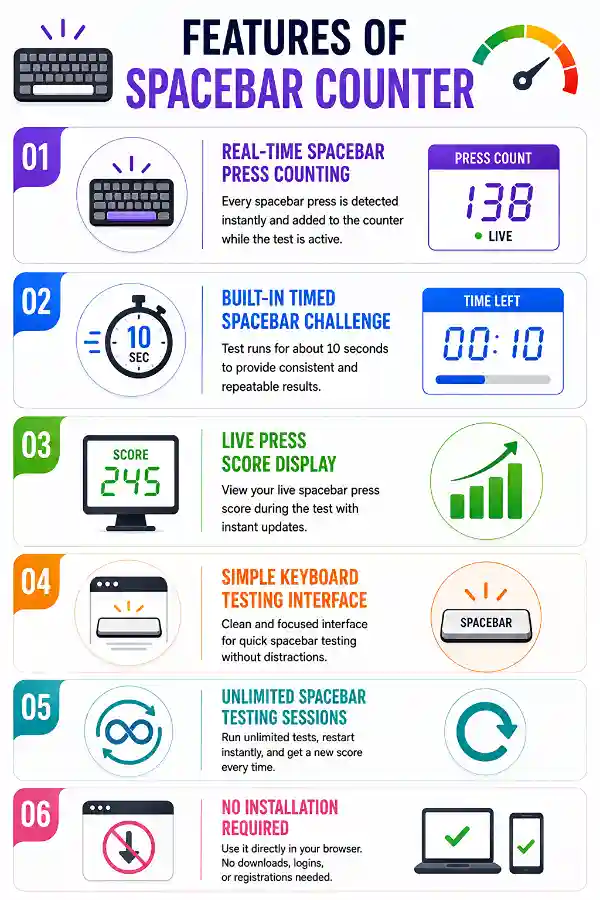
A Spacebar Counter is an online tool that counts how many times you press the Spacebar key during a test session. It detects each registered spacebar press and automatically displays the total count. The tool helps users measure Spacebar-pressing activity and verify that the Spacebar key is responding correctly.
How does the Spacebar Counter work?
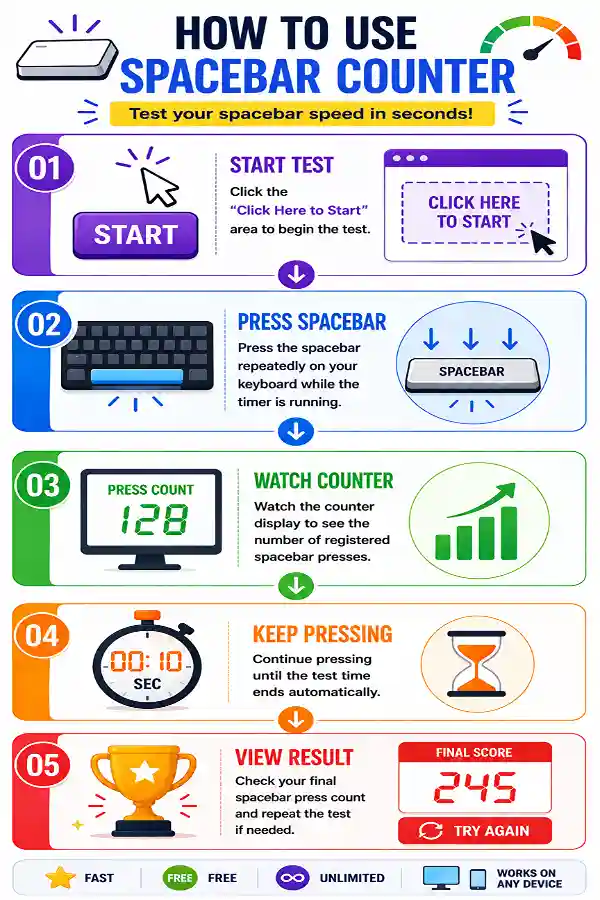
The tool starts detecting spacebar inputs after you begin the test. Every successful space key press increases the counter value in real time. Once the timer ends, it shows the total number of presses recorded during the session.
Why should I use a Spacebar Counter?
A Spacebar Counter can help you test your keyboard space key, measure pressing speed, and track repeated key inputs. It is useful for users checking keyboard performance or simply measuring how many times they can press the spacebar within a given time. The tool provides an instant way to analyze spacebar activity.
Can the Spacebar Counter test if my space key is working?
Yes, the tool can help verify whether your spacebar is registering correctly. Each detected press appears in the counter, making missed inputs easier to notice. It is useful when troubleshooting keyboards that feel unresponsive or inconsistent.
Why are my spacebar presses not being counted?
Spacebar presses may not register due to keyboard connection problems, browser restrictions, hardware faults, or pressing outside the active test area. Try clicking inside the testing window before starting again. You can also check your keyboard connection and browser settings.
Does the Spacebar Counter work with laptop keyboards?
Yes, the tool works with most laptop keyboards that have a functioning space key. The browser detects the keyboard input directly without requiring additional software. If the laptop spacebar has a hardware issue, some presses may not be detected.
Can I use this tool to test an external keyboard?
Yes, you can connect an external USB or wireless keyboard and use the Spacebar Counter to check its space key performance. It can help compare different keyboards and identify input response differences. Make sure the keyboard is properly connected before starting the test.
Does the Spacebar Counter measure typing speed?
The tool mainly measures spacebar presses rather than regular typing speed. It focuses only on the number of times the space key is registered during the test. For typing speed measurement, a dedicated typing test would be more suitable.
Can I use the Spacebar Counter for gaming keyboard testing?
Yes, gamers can use it to check how consistently their keyboard registers repeated spacebar inputs. It can be helpful for games where the space key is frequently used for actions like jumping. The test provides a quick way to confirm keyboard responsiveness.
Why does my spacebar count differ between attempts?
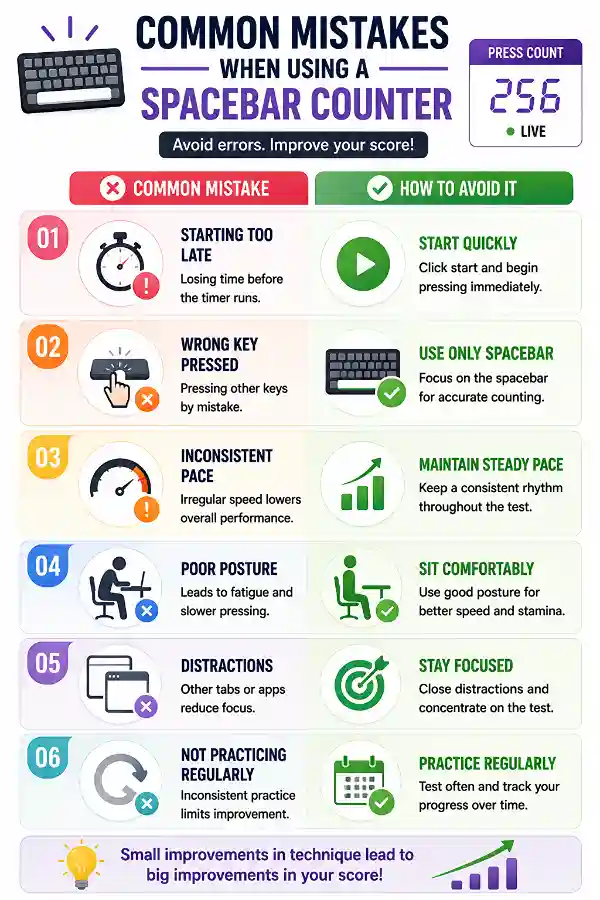
Your result can change depending on pressing speed, finger movement, keyboard response, and how consistently you press the key. Small variations between tests are normal. Running multiple tests can help you understand your average performance.
Can the Spacebar Counter detect every type of keyboard issue?
The tool can detect whether spacebar inputs are being registered, but it cannot identify every internal hardware problem. Issues such as mechanical switch damage or physical key wear may require additional inspection. The counter is mainly designed for spacebar testing.
Can I run the Spacebar Counter multiple times?
Yes, you can repeat the test as many times as needed. Multiple attempts allow you to compare results and check whether your spacebar performance remains consistent. It is also useful when testing different keyboards.
Does the Spacebar Counter require keyboard drivers?
No, the tool works directly through your browser and does not require special keyboard drivers. It uses normal keyboard input detection available on most modern browsers. This makes testing quick and accessible.
Can I use the Spacebar Counter on a mobile phone?
The tool is mainly designed for physical keyboard testing. Mobile devices may not provide the same spacebar input experience as a computer keyboard. For accurate results, using a laptop or desktop keyboard is recommended.
Why does the counter start only after clicking the start button?
The start button activates the testing session and allows the tool to begin recording spacebar inputs. This prevents accidental key presses from being counted before the test begins. It ensures that every result comes from a controlled session.
Is the Spacebar Counter accurate?
The tool accurately counts spacebar presses that are successfully detected by your browser. Results depend on your keyboard hardware, browser behavior, and whether every press is registered. A properly functioning keyboard should provide consistent results.
Can I use this tool to practice pressing the spacebar faster?
Yes, repeated testing can help you monitor your spacebar pressing speed. You can compare results from different attempts and track changes over time. It provides a simple way to measure improvement.
Why does my keyboard make a spacebar sound, but the count does not increase?
This may happen if the browser does not detect the input correctly or if the key press is outside the active testing session. Restarting the test and clicking inside the tool area may resolve the issue. If the problem continues, check the keyboard on another device.
Can I compare two keyboards using this tool?
Yes, you can test each keyboard separately and compare the number of registered spacebar presses. This can help identify differences in responsiveness and comfort. Keep the test duration the same for a fair comparison.
Why is my spacebar sometimes counted twice?
Unexpected double counts may occur because of keyboard switch behavior, hardware settings, or a faulty key mechanism. Testing with another keyboard can help determine whether the issue comes from the device. The tool can help reveal inconsistent input patterns.
Who can use a Spacebar Counter?
Anyone who wants to test, measure, or monitor spacebar activity can use the tool. It is useful for students, gamers, keyboard enthusiasts, and users troubleshooting keyboard issues. The simple interface makes it suitable for beginners and advanced users alike.
Can the Spacebar Counter check if my space key is working correctly?
Yes, the tool detects registered spacebar presses and displays them in real time. It can help identify whether the space key is responding properly or missing inputs.
My jitter clicking speed is not being detected correctly. What could be the reason?
Jitter click results can vary depending on your mouse sensor, click switch, browser detection, and clicking consistency. Testing with the
Jitter Click Test tool helps you check whether your mouse is registering rapid clicks properly. If results are inconsistent, the issue may be related to the clicking technique or mouse hardware.
Why does my CPS score change between tests?
Your CPS score can vary because of clicking style, hand movement, mouse response, and consistency. Testing multiple times with the
CPS Test tool gives a better idea of your average clicking speed rather than depending on a single attempt. Different techniques such as normal clicking, jitter clicking, or butterfly clicking can also affect results.