Does this tool work with all Windows versions?
Yes. The tool works in modern web browsers running Windows 10, Windows 11, and many earlier Windows versions. As long as your browser can detect keyboard input, you can test your keys without additional software.
Can I test a Windows laptop keyboard?
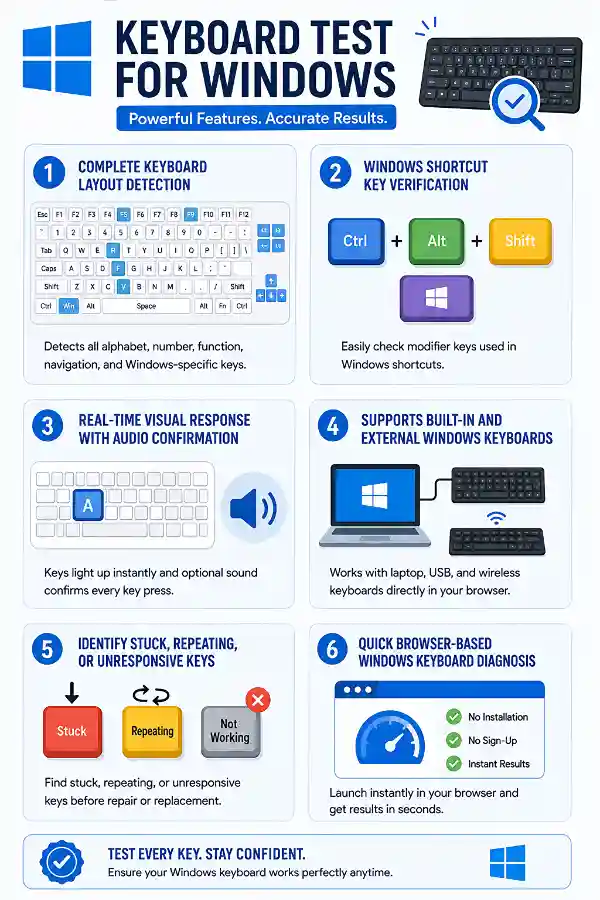
Absolutely. The tester works with built-in laptop keyboards from brands like Dell, HP, Lenovo, ASUS, Acer, MSI, Samsung, and many others. Simply open the page and begin pressing each key.
Does the tool support USB and wireless keyboards?
Yes. USB, Bluetooth, and wireless keyboards connected to a Windows computer can all be tested. The browser detects the keyboard input in the same way regardless of the connection type.
Why is one key not highlighted during the test?
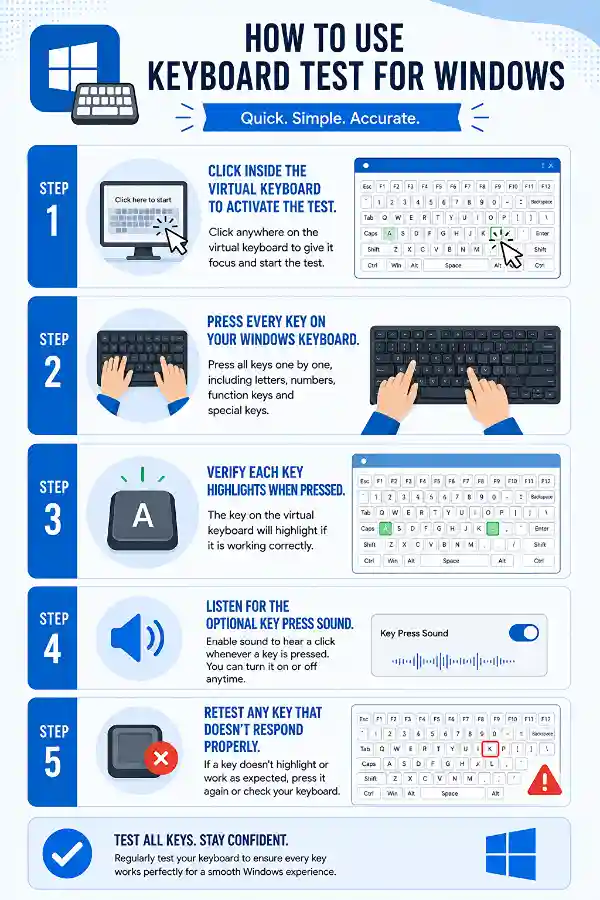
If only one specific key never responds, it may be physically damaged, blocked by debris, or experiencing a hardware fault. Testing it multiple times helps confirm whether the issue is consistent.
Can I test the Windows key?
Yes. The Windows key can be tested like other supported keys. If it doesn't register, check whether Gaming Mode or keyboard software has disabled the Windows key.
Can I test function keys (F1–F12)?
Many function keys can be tested if your browser allows them to be be detected. However, keys such as F5 (Refresh), F10 (Menu Bar in some browsers), F11 (Full Screen), and F12 (Developer Tools) may activate browser functions instead of registering in the tester. On some laptops, you may also need to hold the Fn key to use the standard function keys.
I spilled water on my keyboard. Can this tool help?
Yes. After your keyboard has dried and it is safe to use, this tester can help identify which keys still respond correctly. It provides a quick way to check whether any keys have stopped functioning.
Can I use this tool after replacing my keyboard?
Definitely. Whether you've installed a new laptop keyboard or connected a replacement external keyboard, the tester lets you verify that every key is working before regular use.
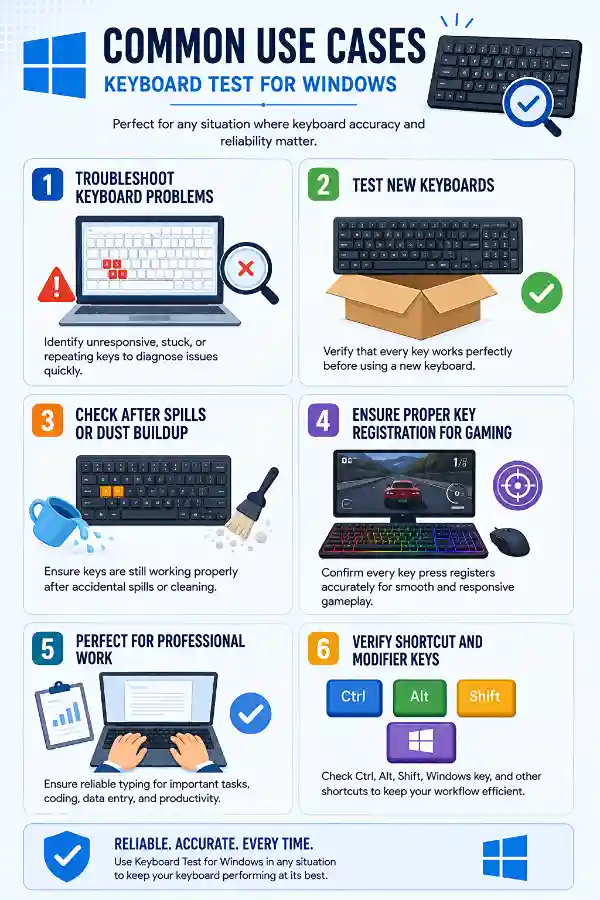
Why are some shortcut keys not working in Windows?
Shortcut problems are often caused by one modifier key such as Ctrl, Shift, Alt, or the Windows key not registering correctly. Testing these keys individually helps identify the faulty one.
Can I test my keyboard before an online exam or interview?
Yes. Many users check their keyboards before online classes, coding interviews, office meetings, or examinations. Testing beforehand reduces the chance of unexpected typing issues during important tasks.
Can this tool detect a partially working keyboard?
Yes. Sometimes only a few keys fail while the rest of the keyboard works normally. Testing every key individually helps you identify exactly which keys are affected.
My keyboard types the wrong character. Can this tool identify the problem?
The tool shows whether a key press is detected, but incorrect characters are often caused by the selected Windows keyboard layout or language settings. If every key responds but types different symbols, check your keyboard language configuration.
Why isn't my external keyboard responding?
First, make sure the keyboard is properly connected and recognized by Windows. If none of the keys highlight during the test, try another USB port, reconnect the device, or replace the batteries if it is wireless.
Can I use this tester after updating Windows?
Yes. Keyboard issues can occasionally appear after Windows updates due to driver or system changes. Running this test helps confirm whether the keyboard hardware is still functioning correctly.
Does this tool help diagnose gaming keyboard problems?
Yes. Gamers can verify that frequently used keys such as W, A, S, D, Spacebar, Shift, Ctrl, and R respond correctly. This helps identify hardware issues before starting gameplay.
What should I do if only the number keys stop working?
Check whether Num Lock is enabled if you're using a numeric keypad. If the problem persists after changing the Num Lock state, the tester can help determine whether the affected keys are physically registering.
Can I test both left and right modifier keys separately?
Yes. The tool detects left and right versions of keys such as Shift, Ctrl, and Alt when supported by your browser. This helps locate problems affecting only one side of the keyboard.
Why do some keys work only after pressing them harder?
This usually indicates worn switches, dirt beneath the keycap, or a developing hardware problem. If a key responds inconsistently during repeated testing, it may require cleaning or replacement.
Can this tool help before buying a second-hand keyboard?
Yes. Testing every key before purchasing or accepting a used keyboard helps confirm that all buttons respond properly. It is a quick way to spot hidden hardware defects.
How often should I test my Windows keyboard?
Most users only need to test their keyboard when they notice typing problems or after repairs, cleaning, spills, or hardware upgrades. Regular testing is also helpful if you rely on your keyboard daily for work, gaming, or programming.
Why should I take a Typing Speed Test?
A
Typing Speed Test measures your typing speed, accuracy, and overall keyboard efficiency. It is useful for students, professionals, writers, and anyone who wants to improve typing skills or evaluate performance. You can use the tool to check your typing speed and identify areas for improvement. Regular practice helps users develop faster and more accurate typing habits.
Why should I use a Drag Test?
A
Drag Test helps check whether your mouse can smoothly click, hold, and move objects without interruptions. It is useful for identifying problems like mouse button release issues, inconsistent dragging, or poor tracking performance. You can use
https://hwtests.com/drag-test to verify your mouse drag functionality directly in your browser. The tool is helpful for gamers, designers, and users who frequently perform drag-and-drop actions.