What is a Custom Typing Test?
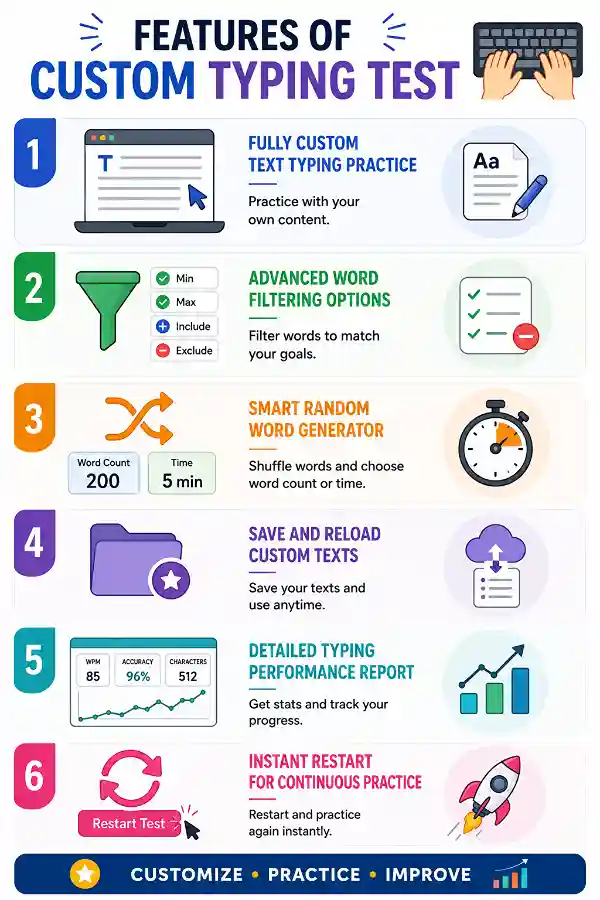
A Custom Typing Test lets you create a typing exercise using your own text instead of a predefined paragraph. Simply paste any content you want to practice, such as study notes, articles, speeches, or coding snippets. This makes the typing test more relevant to your daily work, learning, or personal practice goals.
What is Show Saved Texts used for?
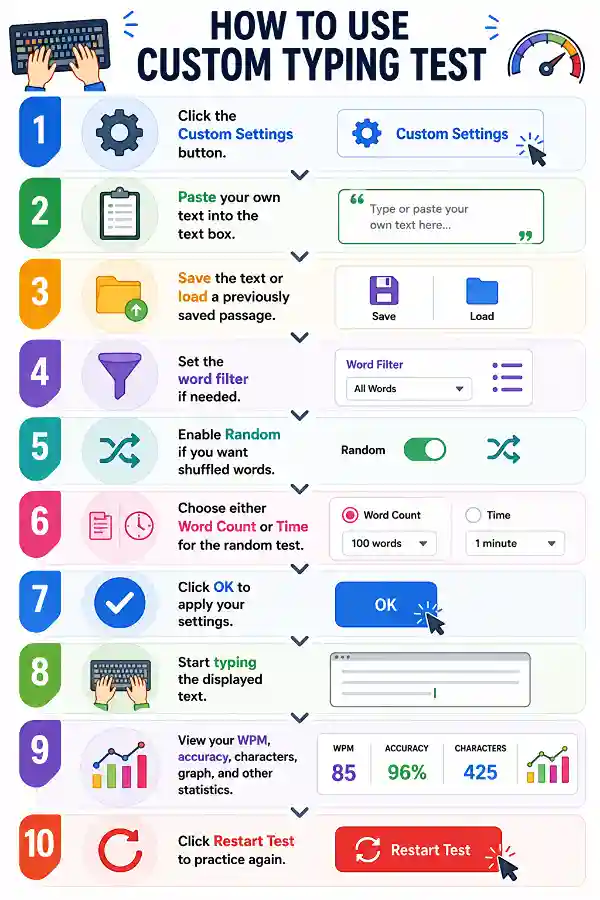
The Show Saved Texts option displays all the custom passages you have previously saved. Instead of creating a new typing test every time, you can simply choose one of your saved texts and continue practicing. This feature helps save time and keeps your favorite practice materials organized.
What does the Minimum Word Length setting do?
The Minimum Word Length setting removes words that are shorter than the value you choose. For example, if you set the minimum length to five, words with fewer than five letters will not be included in the generated typing test. This is useful for practicing longer vocabulary words.
What is the Include option used for?
The Include option lets you add specific words that you want to appear in the generated typing test. This is helpful when you want extra practice with technical terms, vocabulary words, or frequently used phrases. It allows you to build a typing exercise that matches your learning goals.
What does the Exclude option do?
The Exclude option removes selected words from the generated typing test. If there are words you do not want to practice, simply add them to the exclude list before generating the test. This gives you better control over the final typing content.
Why should I use the Random option?
The Random option creates a different typing test each time by shuffling the words from your custom text. This prevents you from memorizing the original sequence and encourages genuine typing improvement. It is especially useful when practicing the same text repeatedly.
What is Word Count mode?
Word Count mode generates a typing test with a specific number of words based on your selection. The test automatically ends once you finish typing the chosen number of words. This option is useful for quick practice sessions or completing a fixed amount of typing.
What is Time mode?
Time mode lets you practice typing for a selected duration instead of a fixed number of words. The test continues until the timer reaches zero, regardless of how many words you type. It is a great way to measure typing speed and endurance under timed conditions.
What does the WPM result mean?
WPM stands for Words Per Minute, which measures your typing speed during the test. It estimates how many standard words you can type correctly in one minute. A higher WPM generally indicates faster typing performance.
How is typing accuracy calculated?
Typing accuracy compares the number of correctly typed characters with the total number of characters you entered. Mistakes reduce your overall accuracy percentage. Improving accuracy is just as important as increasing typing speed because fewer errors lead to better overall performance.
What does the Characters result show?
The Characters section displays how many characters you typed during the test, including correct and incorrect entries. This gives you a better understanding of your typing performance beyond just WPM. It also helps you identify whether errors are affecting your typing results.
What is the WPM graph used for?
The WPM graph shows how your typing speed changes throughout the test instead of displaying only the final result. You can see whether your typing speed increased, decreased, or remained consistent during the session. This makes it easier to analyze your typing habits and improve over time.
Can I edit my custom text before starting?
Yes. You can modify, replace, or completely rewrite the text in the editor before beginning the typing test. This allows you to create a new practice session whenever needed. The changes will be reflected immediately after applying your settings.
Is this Custom Typing Test suitable for beginners?
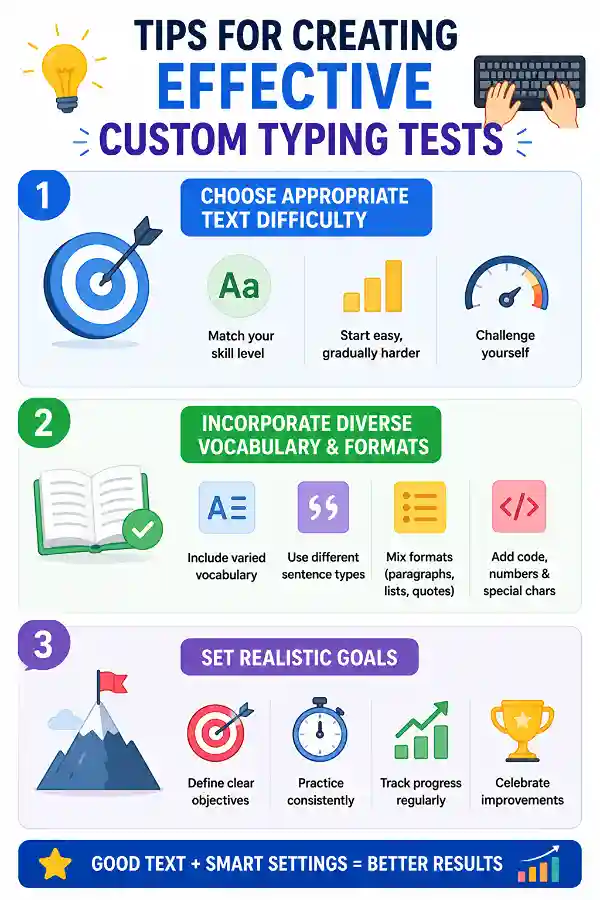
Yes. Beginners can create simple typing exercises by using shorter words, easier text, or smaller word counts. As typing skills improve, they can gradually increase the difficulty using longer words, randomization, and timed practice.
My mouse wheel scrolls unevenly or skips pages. How can I check it?
A faulty scroll wheel can cause inconsistent movement, skipped scrolling, or unexpected direction changes. You can use the
Scroll Test to check whether your mouse wheel is registering scroll inputs properly. The tool helps determine if the issue is related to the mouse hardware rather than browser or website problems.
How can I check whether my spacebar is registering every press?
If your space key feels inconsistent or misses inputs, our
Spacebar Counter can help you verify its performance. The tool counts each detected spacebar press and shows whether inputs are being registered correctly. It is useful for checking keyboards after cleaning, repairs, or when noticing delayed responses.