How do I test whether my Linux keyboard is working properly?
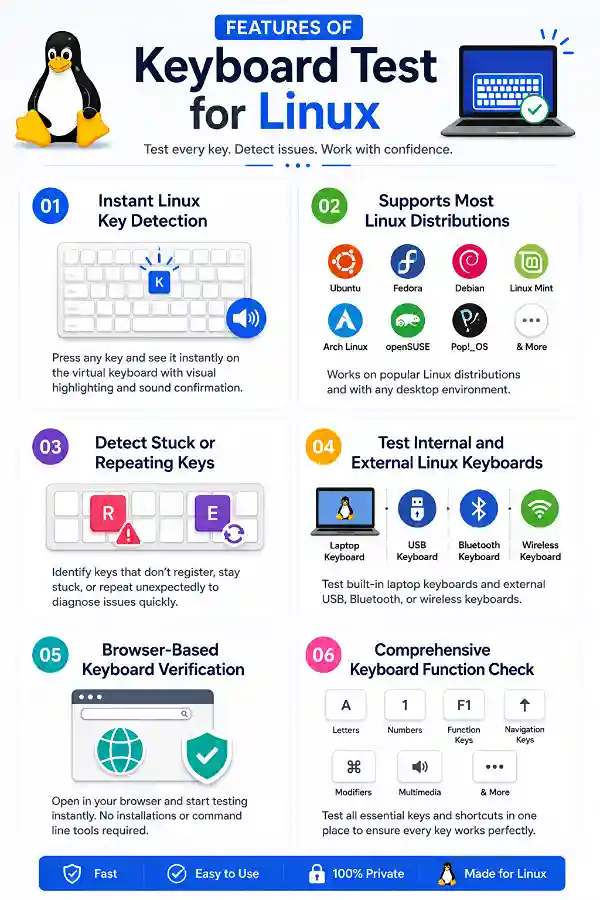
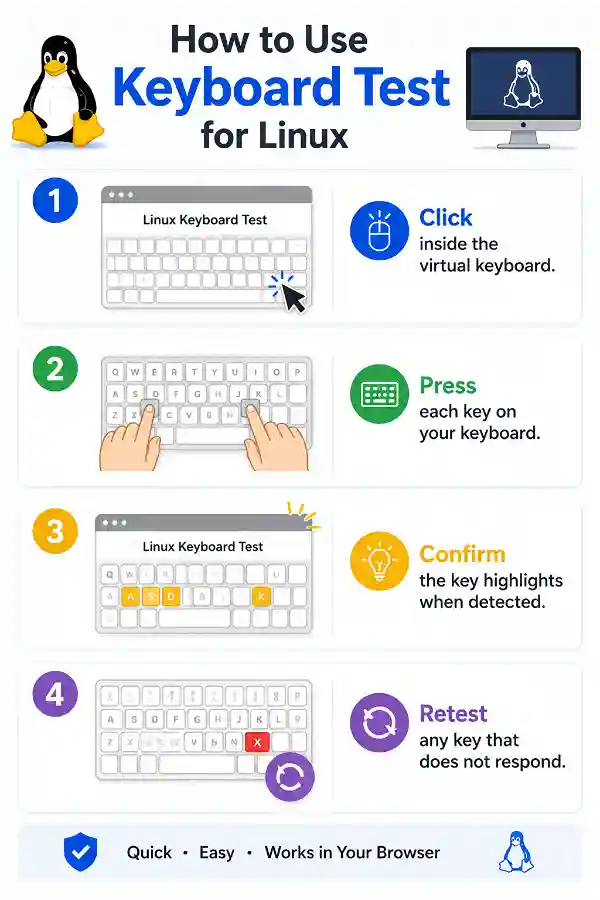
Open the keyboard tester in your browser and press each key individually. Every detected key is highlighted immediately, allowing you to verify that the operating system recognizes your keyboard input.
Can I test a USB keyboard on Linux?
Yes. Connect the USB keyboard to your Linux computer and open the tester. Press each key to confirm that the operating system detects every input correctly.
Does this tool work with Bluetooth keyboards?
Yes. Once the Bluetooth keyboard is paired with Linux and functioning normally, the tester can verify whether individual key presses are detected correctly.
Why are some keys not highlighting?
The key may be physically damaged, disabled by software, intercepted by browser shortcuts, or unsupported by your browser. Testing in another browser can help isolate the cause.
Can this tool detect a stuck key?
Yes. If a key remains continuously activated or repeatedly registers without being pressed normally, the tester can help identify the problem.
Why does my Linux keyboard type repeated characters?
Repeated characters are often caused by sticky keys, hardware faults, keyboard repeat settings, or debris beneath the keycaps. Testing individual keys helps narrow down the issue.
Does the tool support function keys?
Yes. Function keys such as F1 through F12 can usually be tested, although certain desktop shortcuts may intercept some key presses.
Will this work on Ubuntu?
Yes. The tool supports Ubuntu and other Linux distributions that use modern web browsers.
Can I test my laptop keyboard after replacing it?
Yes. This is one of the quickest ways to verify that every replacement key responds correctly before regular use.
Why is my spacebar not responding?
Dust, hardware failure, keyboard damage, or software conflicts may prevent the Spacebar from working. The tester helps confirm whether Linux detects the key press.
Can I check modifier keys?
Yes. Shift, Ctrl, Alt, Super, and other modifier keys can be tested individually.
Does browser choice affect keyboard testing?
Sometimes. Different browsers handle certain shortcut keys differently, so results may vary for reserved key combinations.
Is this useful after cleaning a keyboard?
Yes. Running a complete keyboard test helps verify that every key still functions after cleaning or maintenance.
Can I test a wireless keyboard receiver?
Yes. If Linux recognizes the connected wireless keyboard, every supported key can be verified using the tester.
Can I identify broken keys before replacing my keyboard?
Yes. Testing every key individually helps determine whether replacement is necessary or if only specific keys are affected.
Does this work on Chromebooks running Linux?
If your Linux environment and browser support keyboard events, the tester can detect supported key presses.
Why do shortcut keys behave differently?
Desktop environments and browsers often reserve shortcuts, preventing some key combinations from reaching web applications.
Can keyboard drivers affect test results?
Linux generally includes built-in keyboard drivers, but configuration changes or hardware compatibility issues can sometimes affect key detection.
Is this useful for gaming keyboards?
Yes. Gaming keyboards connected to Linux can be tested to ensure primary keys respond correctly before gameplay.
Can I troubleshoot an external keyboard before replacing it?
Absolutely. Testing every key helps determine whether the problem lies with the keyboard itself or Linux configuration.
What should I do if a key still doesn't respond?
Retest the key in another browser or on another computer. If it consistently fails, the issue is likely hardware-related rather than browser or operating-system-related.
Is a 1-minute typing test accurate enough?
Yes, a
one-minute test can provide a useful snapshot of your typing performance. While longer tests measure endurance, a one-minute session is convenient for checking daily progress and quick comparisons. The tool helps users measure speed and accuracy instantly.
Why do I miss targets while using my mouse?
Missing targets can happen due to poor cursor control, incorrect sensitivity settings, or lack of hand-eye coordination. Using the
Mouse Accuracy Test helps evaluate your pointing precision and control. It is useful for identifying areas where you can improve mouse movement accuracy.